Login to your profile: Membership.AmericanHort.org
2
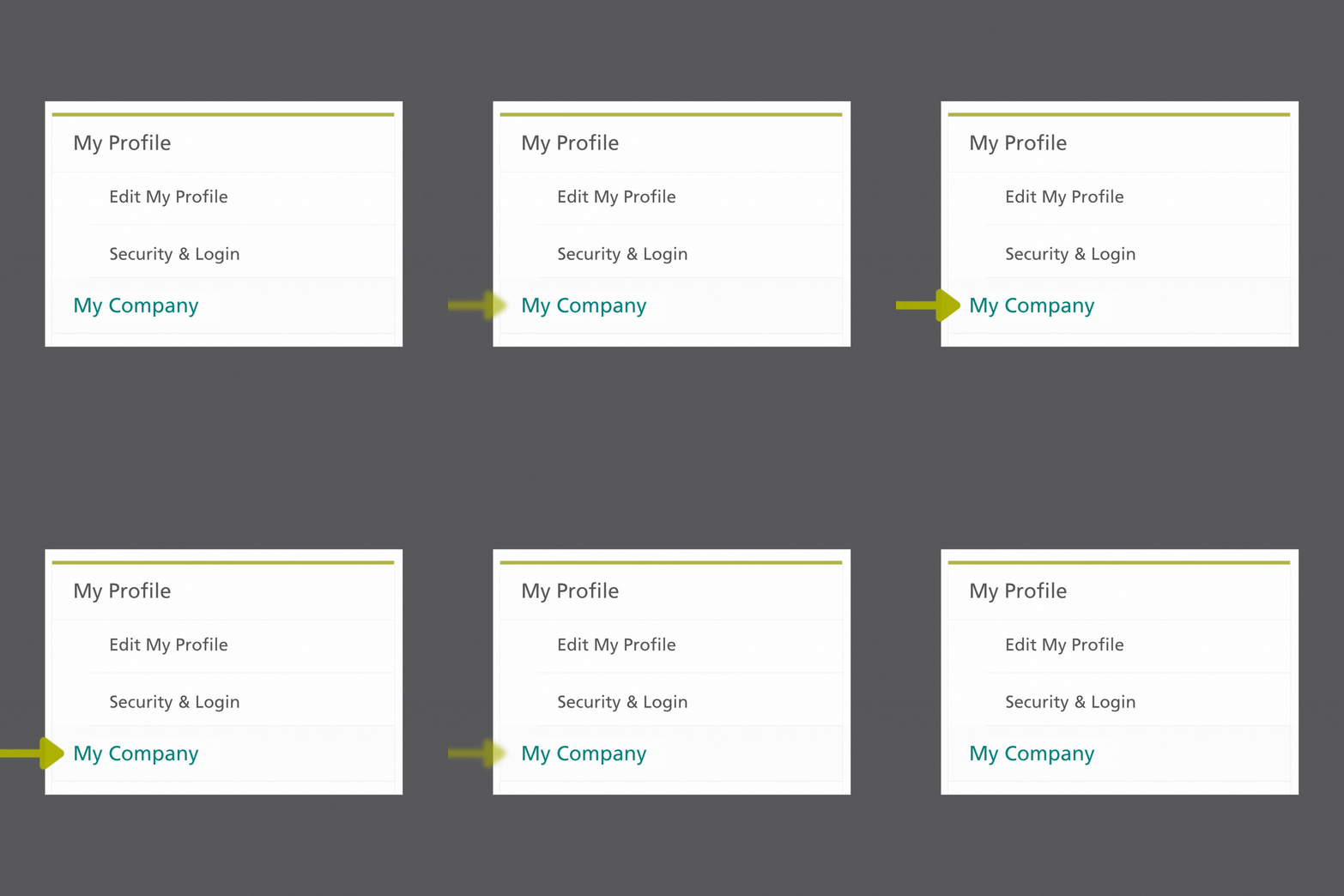
Click on My Company located on the left side
3
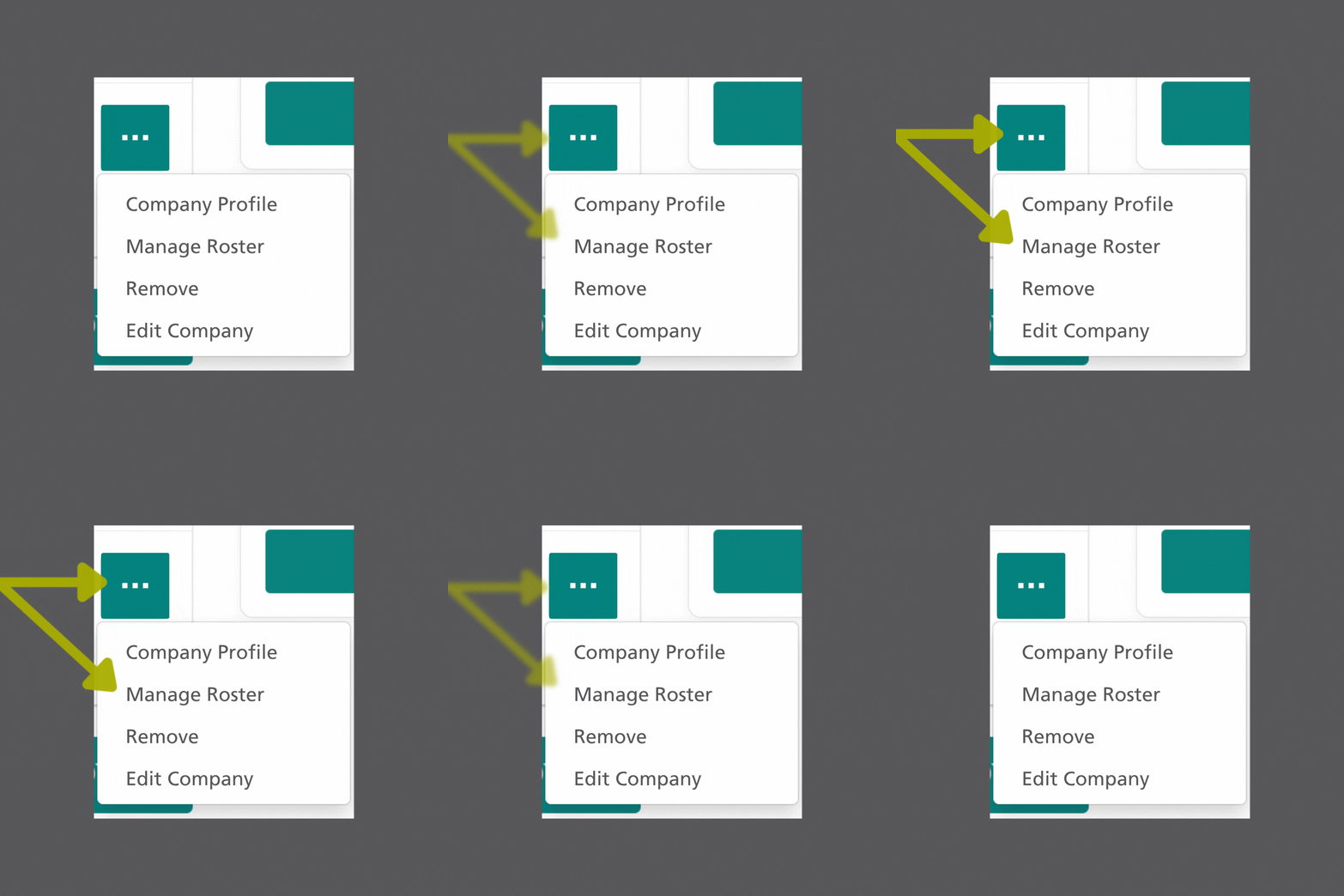
On the next screen, click on the three dots to the right of the company name and click on Manage Roster
4
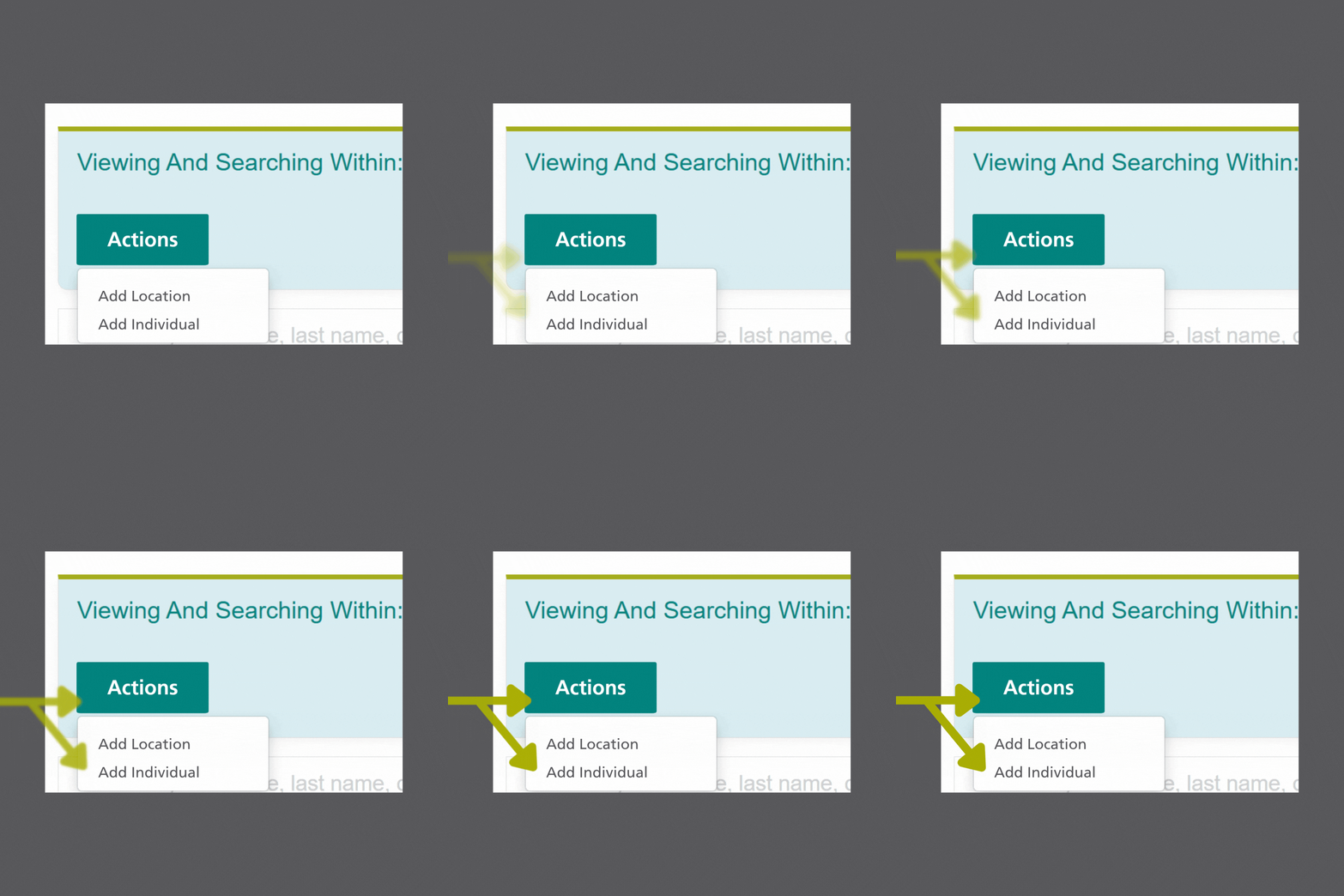
Near the top, click on Actions and Add Individual
5
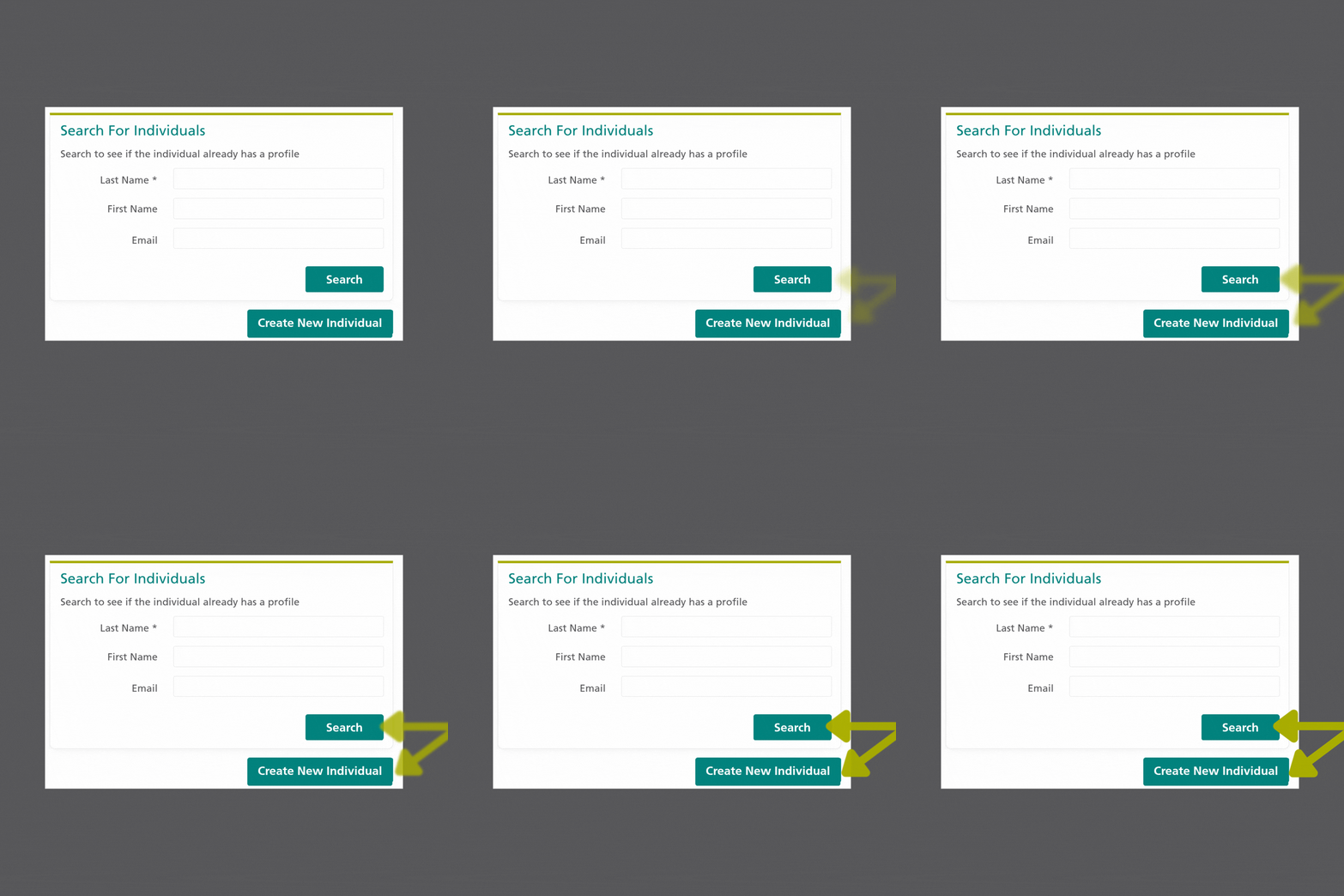
Search for employees that have a profile not connected to the membership, OR Create a New Individual and add them automatically to the company membership
We are here to help you access all member benefits. If you have questions, please contact the AmericanHort team via email or call our office directly at 614-487-1117.
Creating a New Account - Individual
1
Login to your profile: Membership.AmericanHort.org
2
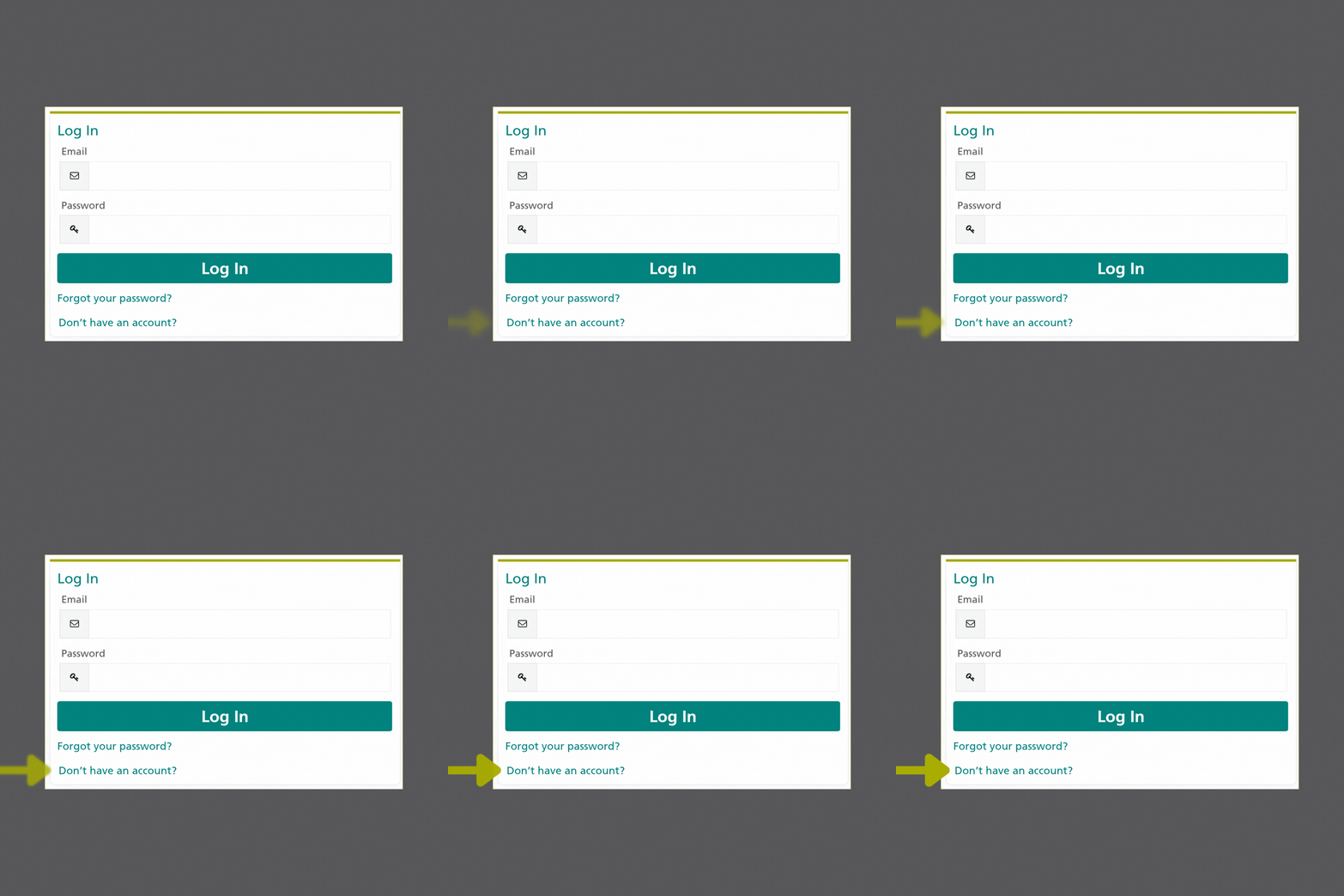
Click on Don’t Have an account? located under the login button
3
Fill in requested information and click Create Account (Note: If your current employer is a member, be sure to use an email address with the same email domain as the company)
If you are employed by a member company, continue with the steps below.
4
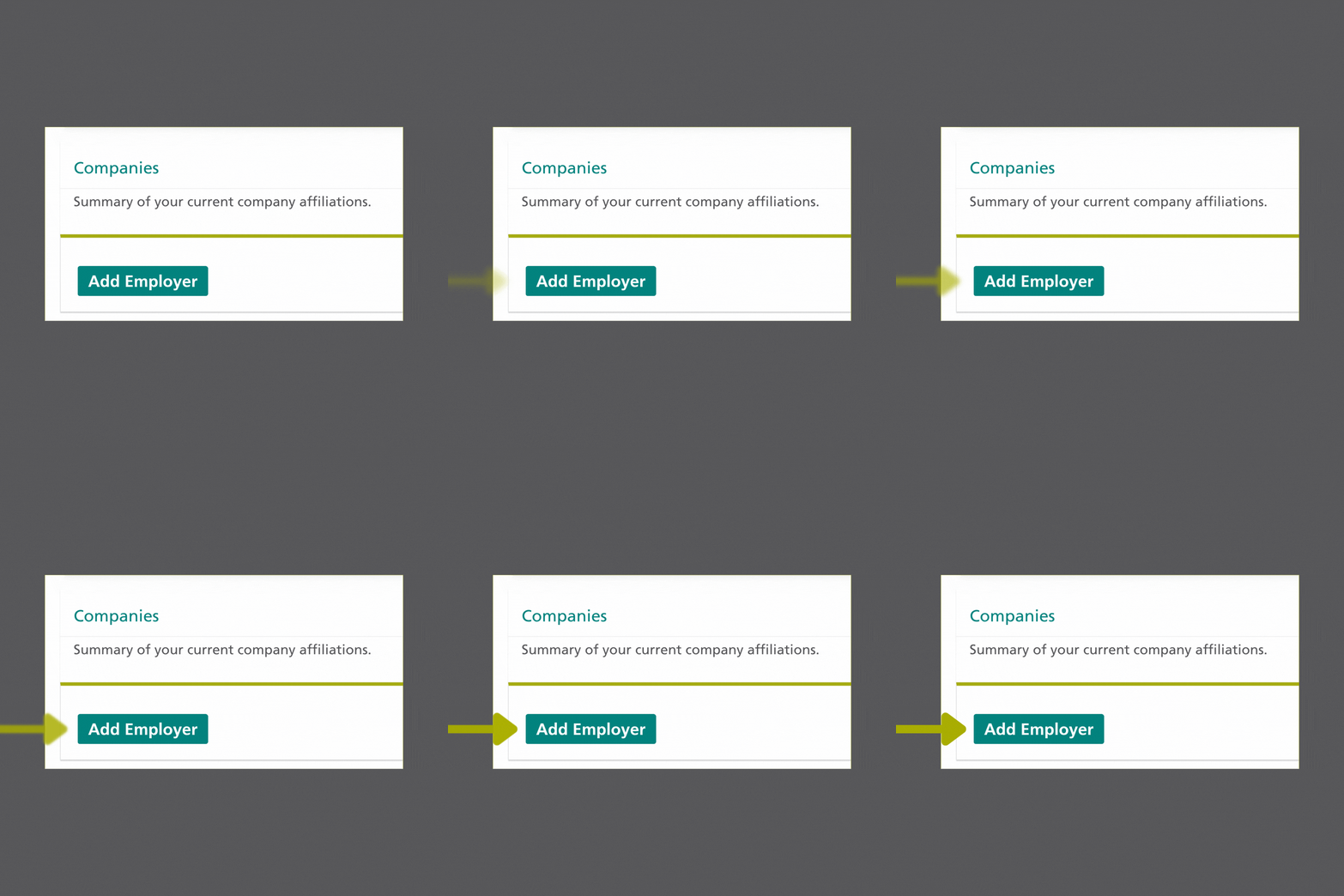
Once the account is created, scroll down and find the Companies section and click Add Employer
5
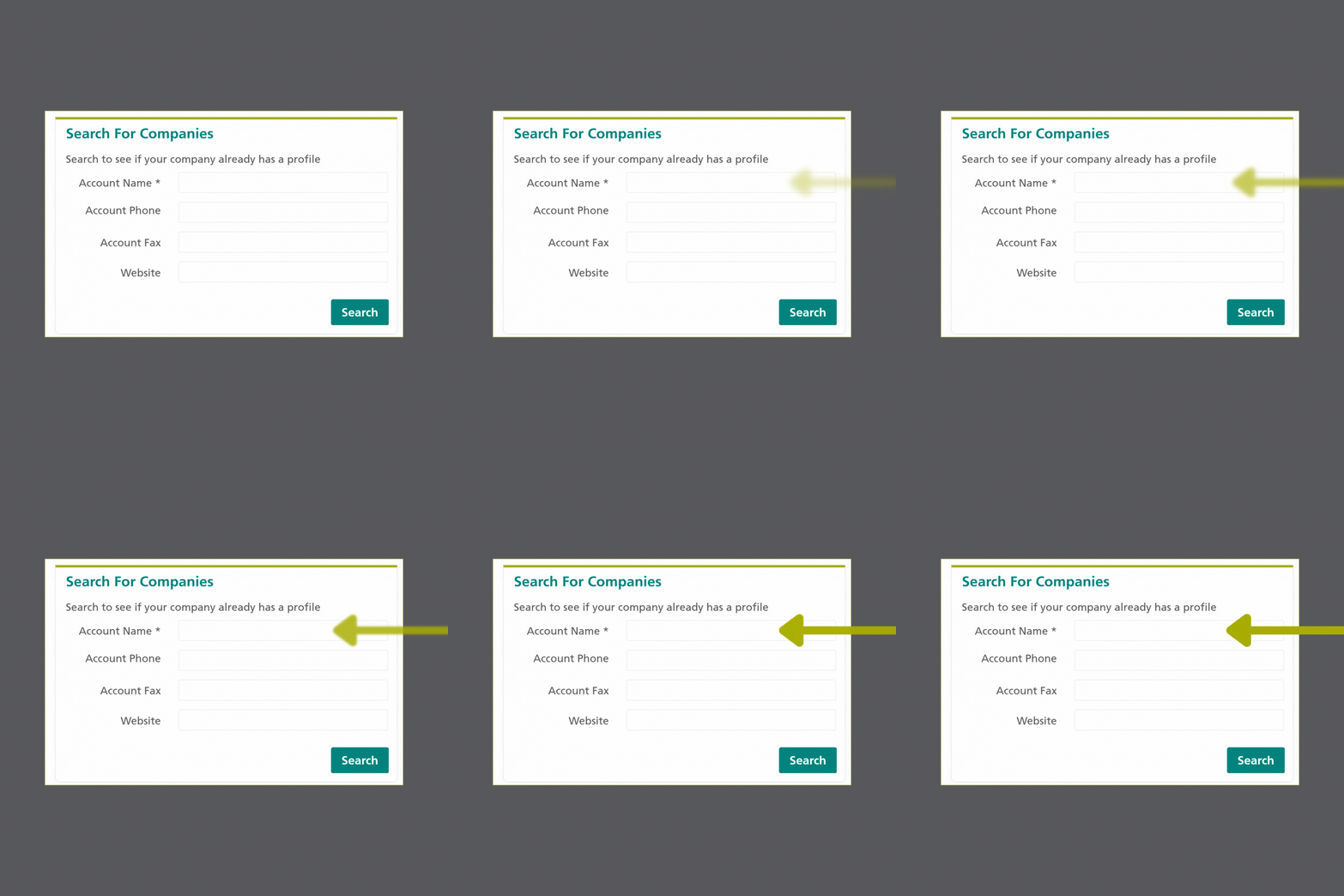
In the Account Name enter the name of your current employer (Note: For searches, less is more when searching. If the company name has punctuation in the name, search without and vice versa).
6
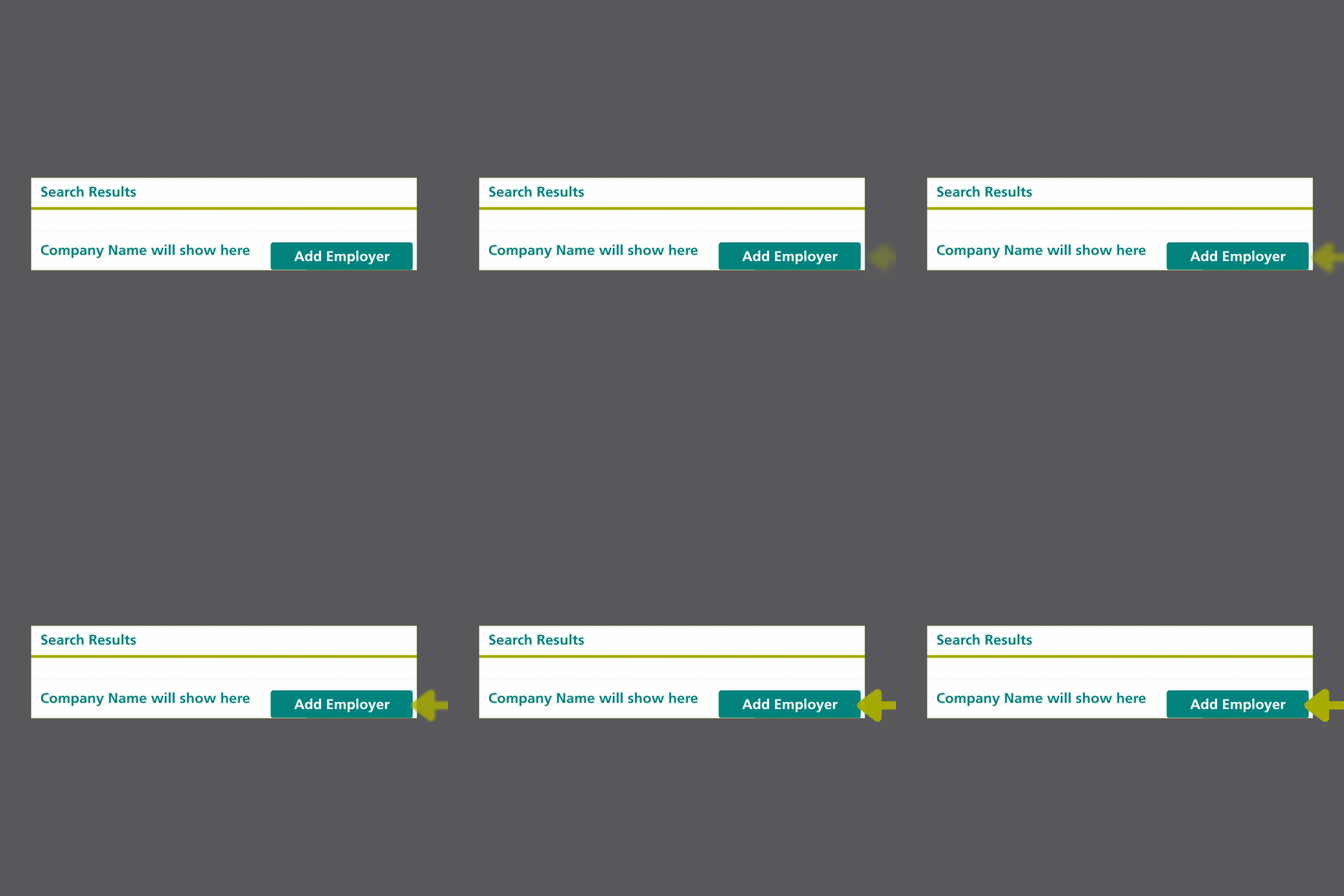
Find the name of your company and click Add Employer (Note: The email used when setting up the account must have the same email domain as the company)
We are here to help you access all member benefits. If you have questions, please contact the AmericanHort team via email or call our office directly at 614-487-1117.